# Opening a Trade
{% stepper %}
{% step %}
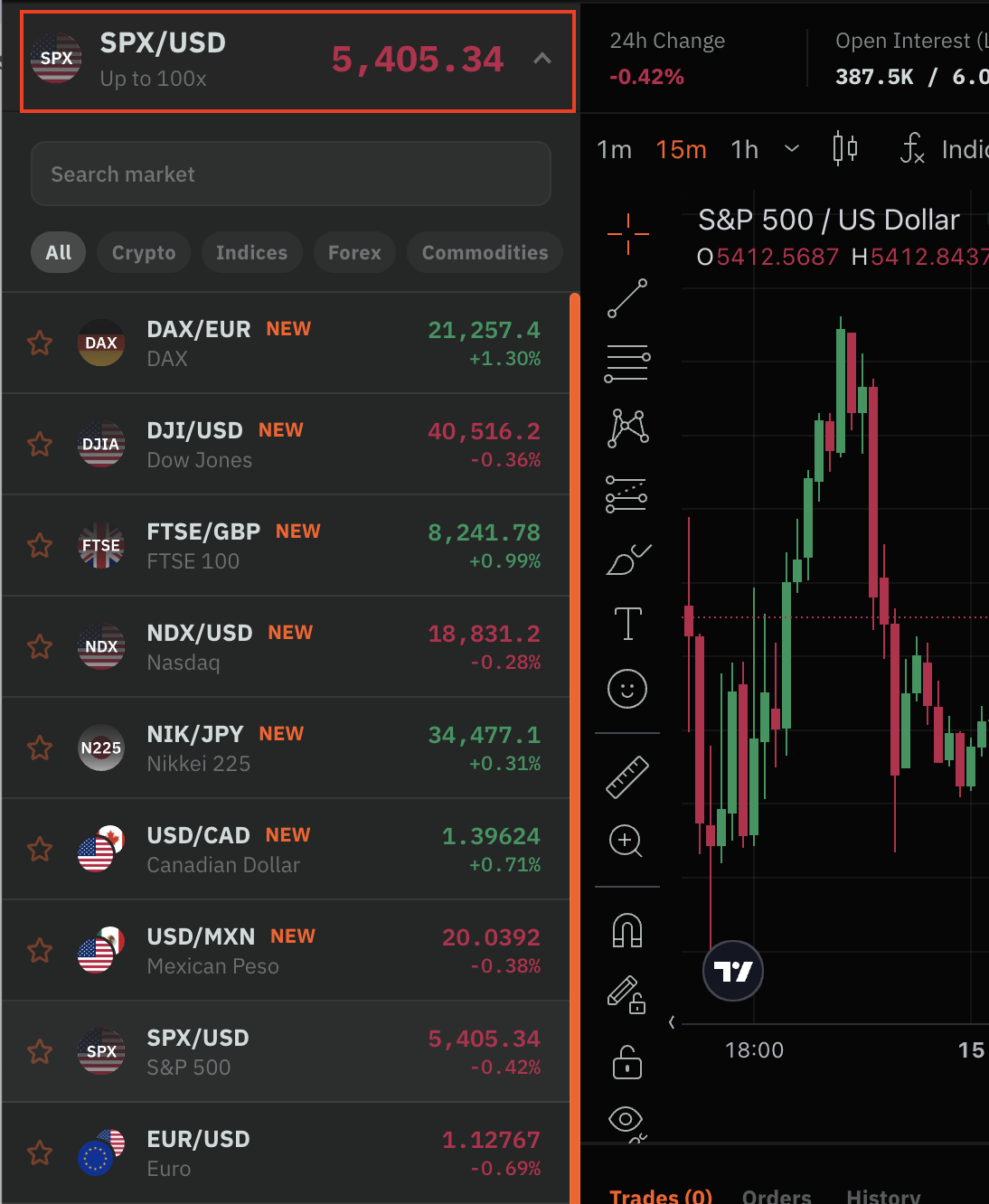
### Select a Market
Select your desired market from the drop-down menu in the trade form
{% endstep %}
{% step %}
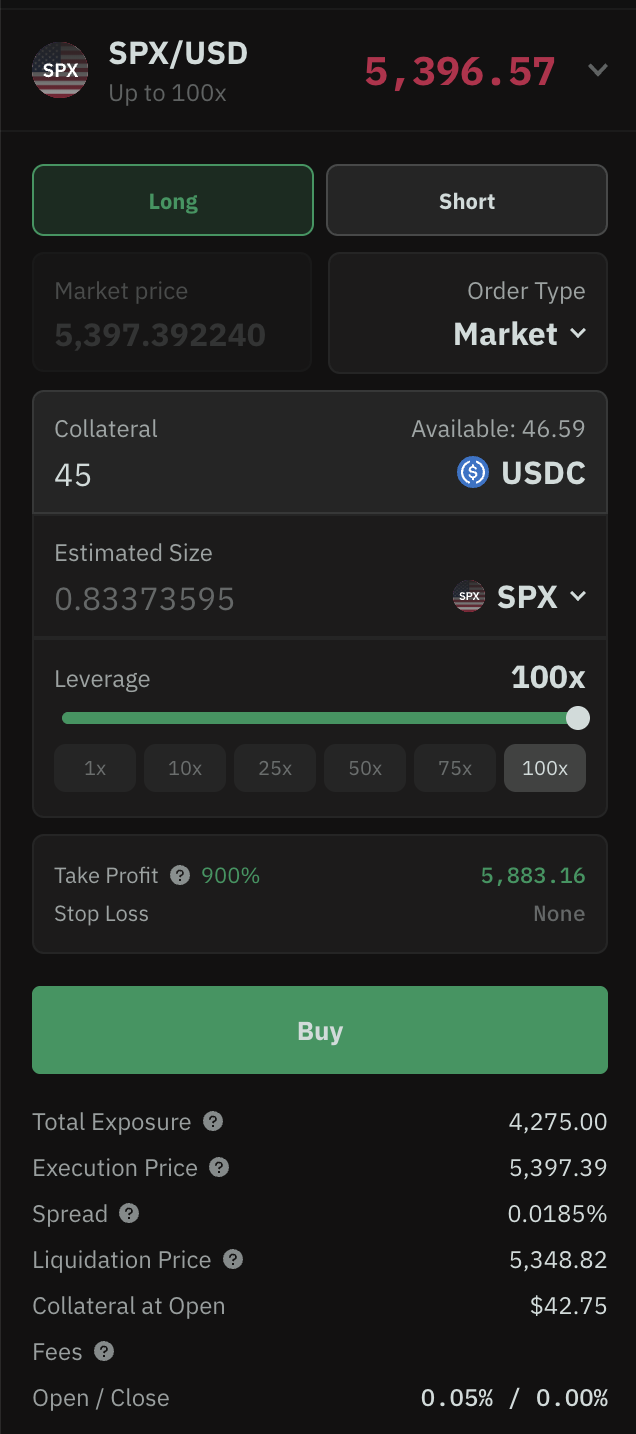
### Fill Trade Information
Select **Side** (long, short), **Order Type** (market, limit, stop), **Collateral Amount**, and **Leverage** (1-200x, depending on the asset). Traders can also input **Estimated Size** (in units of the asset traded), backing out leverage or collateral
{% endstep %}
{% step %}
### (Optional) Set Take Profit and Stop Loss
Optionally set **Take Profit** or **Stop Loss** conditions. Take profit orders at 10x (900%) gain are automatically set to reduce tail event risk for LPs. \
\&#xNAN;*(Please note: maximum and mandatory TPs of 10x is enforced; over time the protocol may increase this threshold or eliminate it entirely should risk management analysis determine they no longer be necessary).*
{% endstep %}
{% step %}
### Fee breakdown
Optionally check fee breakdown by clicking into fee section and hovering over tooltips detailing your precise fee breakdown
{% endstep %}
{% step %}
### Select Buy/Sell Button
Select buy for long (or sell, for shorts):
{% endstep %}
{% step %}
### Confirm trade
Confirm trade conditions. Traders can optionally choose to bypass this confirmation step in the future by selecting "hide order confirmation"
{% endstep %}
{% step %}
### (1-click trading disabled) Wallet Confirmation
Confirm order in the wallet extension. Users can bypass this step and proceed directly to order execution through 1-click trading or a smart account
{% endstep %}
{% step %}
### Monitor your trades
That's it! Monitor your trades in real-time in the "Trades" tab beneath the asset chart.
{% endstep %}
{% endstepper %}